

Sign in to Online Homegroup Host Account
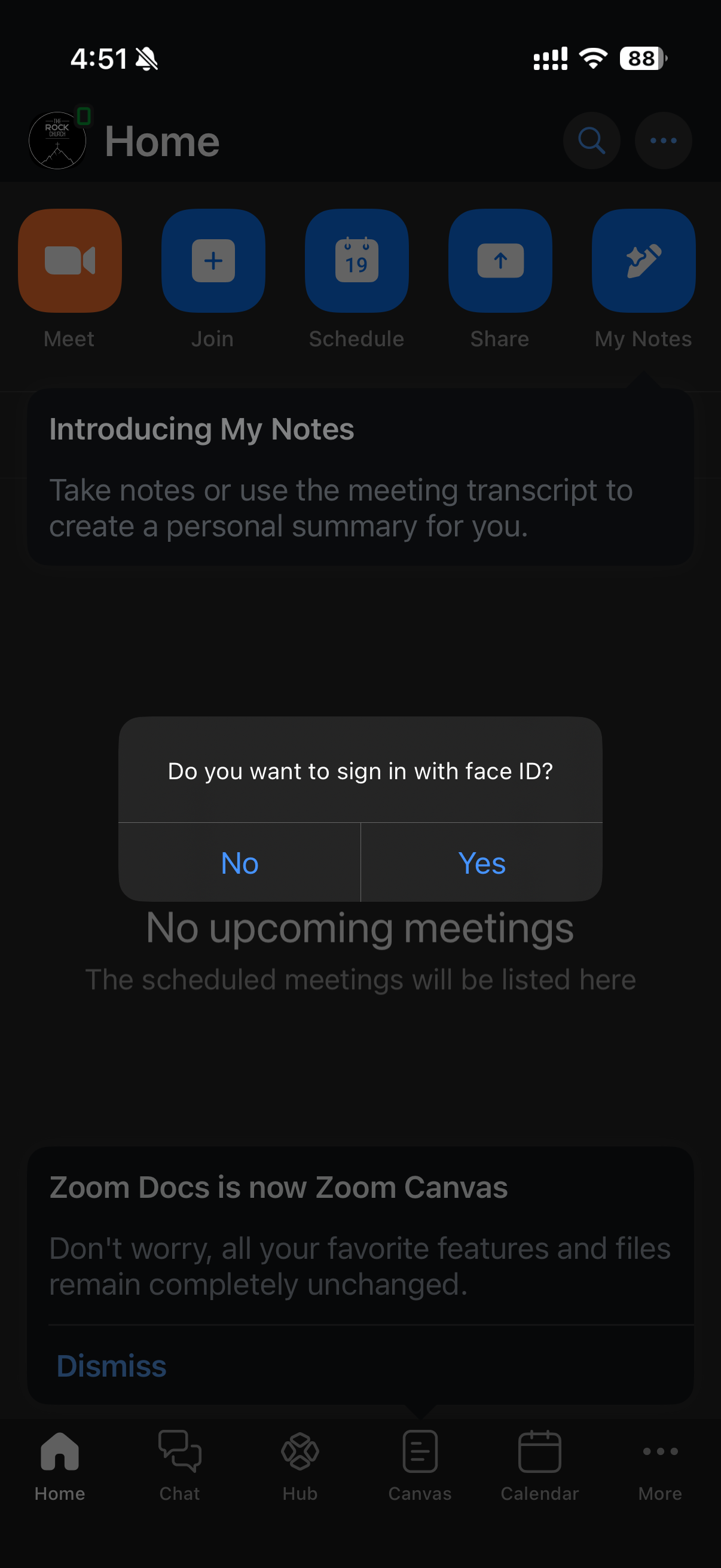
Open Zoom App and login using account credentials shared with you:
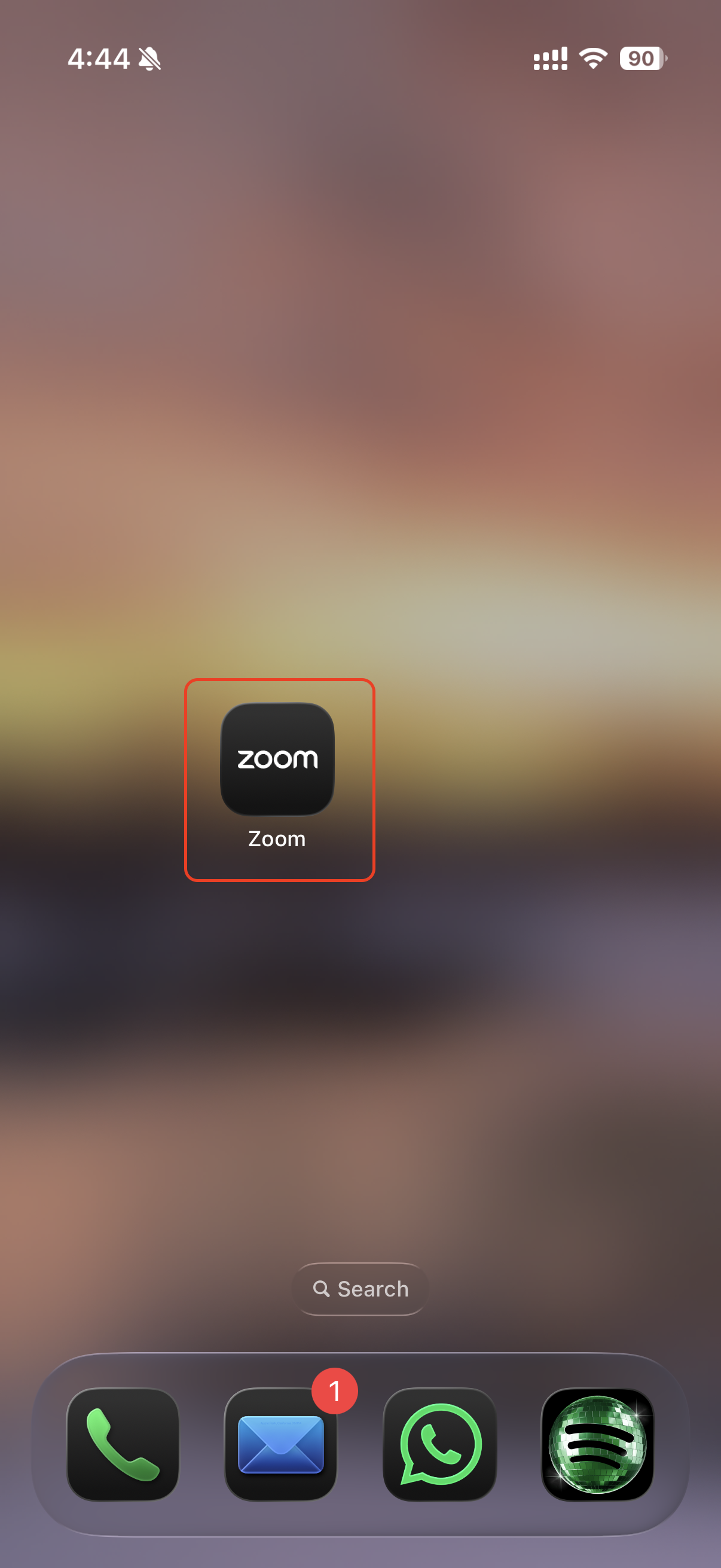
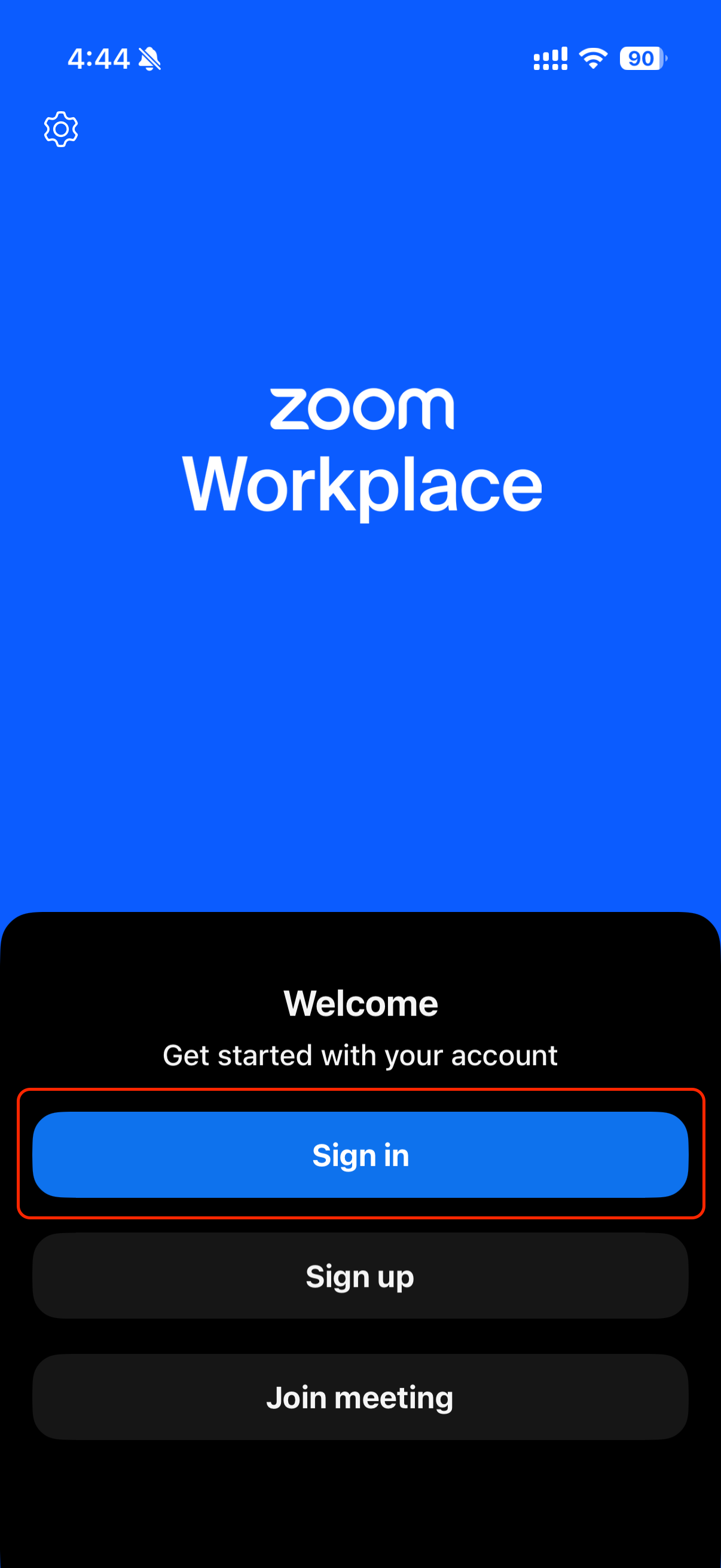
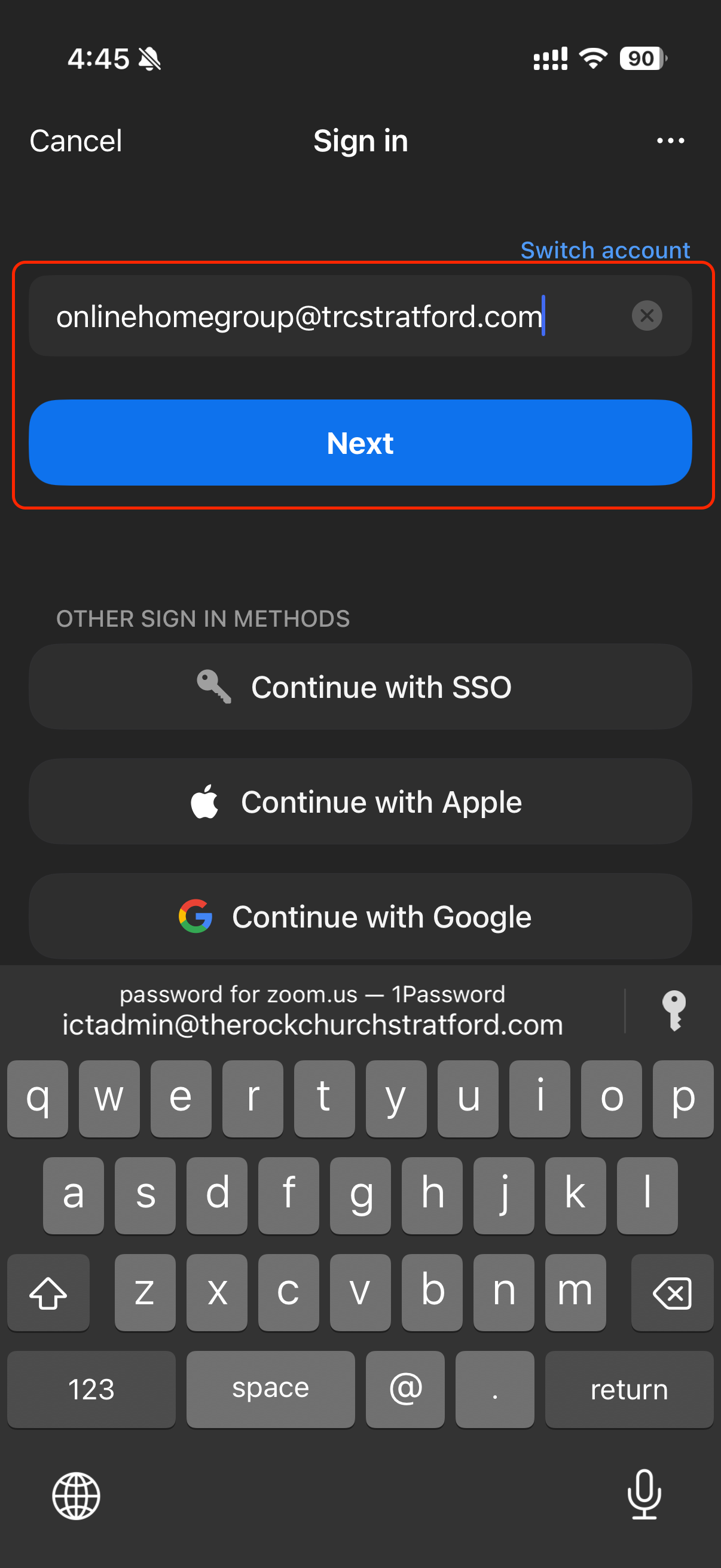
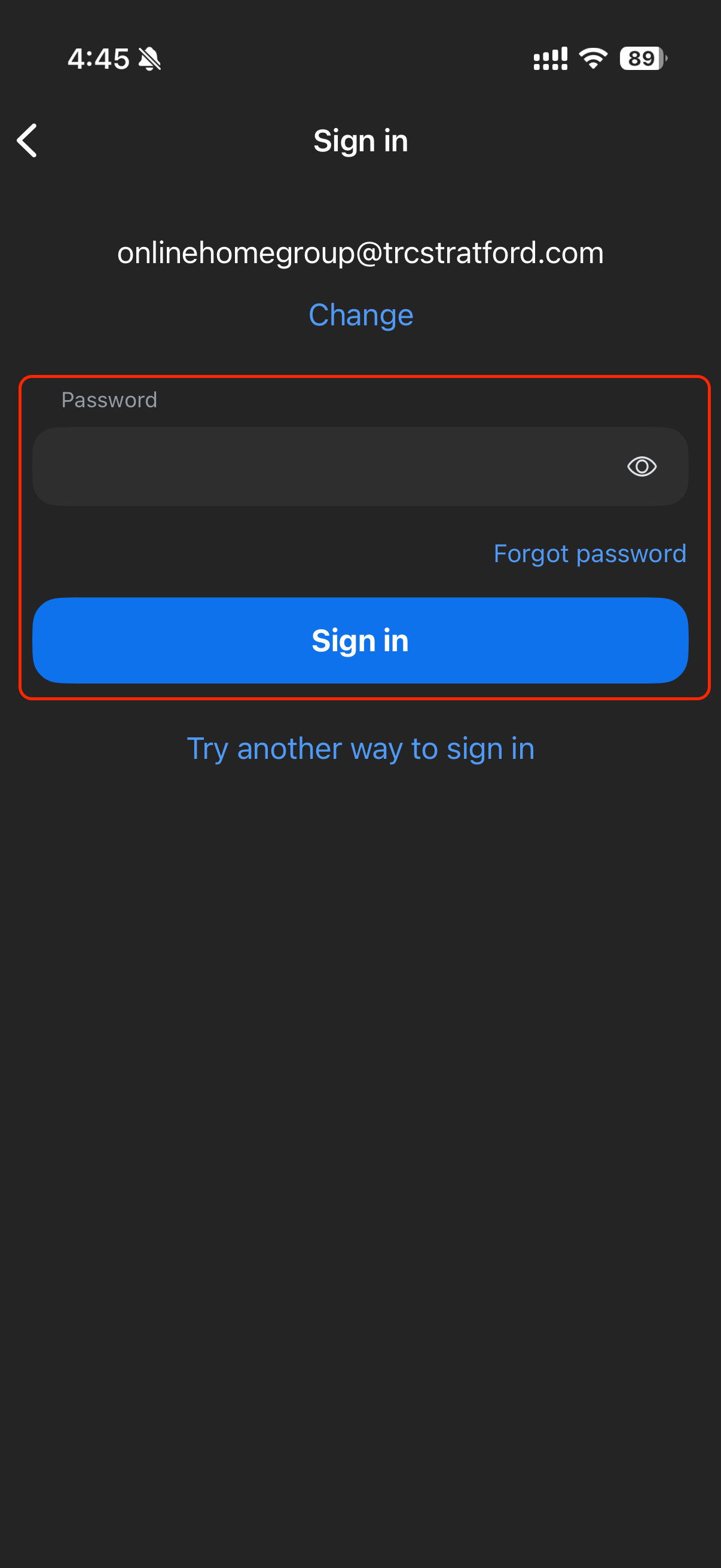
If prompted to sign in with device security (Touch ID/Face ID) choose if you would like to enable this feature.
Selecting yes will make it quicker and easier to sign in going forward.
Join Meeting (Host)
Open Zoom App and login using account credentials shared with you (as noted above).
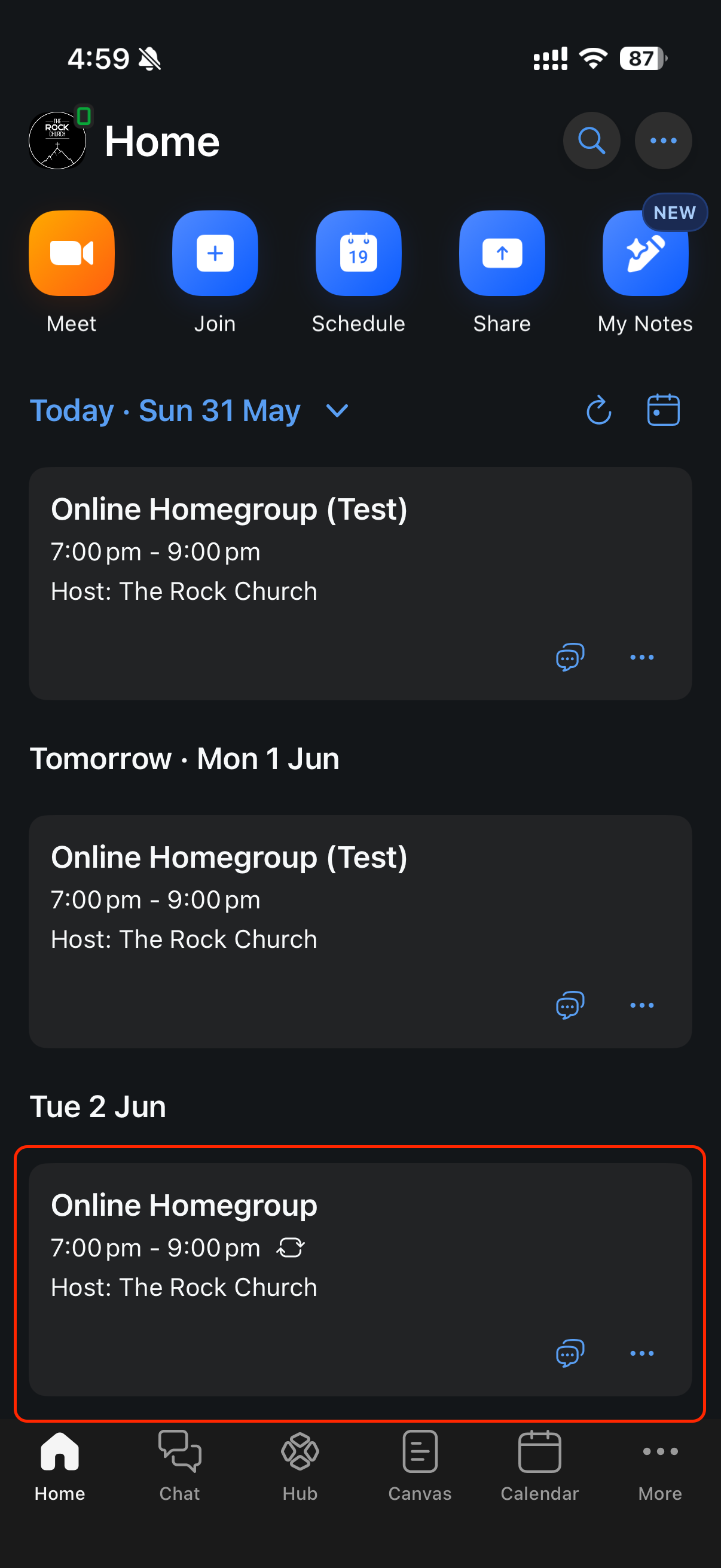
On the ‘Home Screen’ you will see upcoming meetings. Click on todays meeting (at the top of the list).
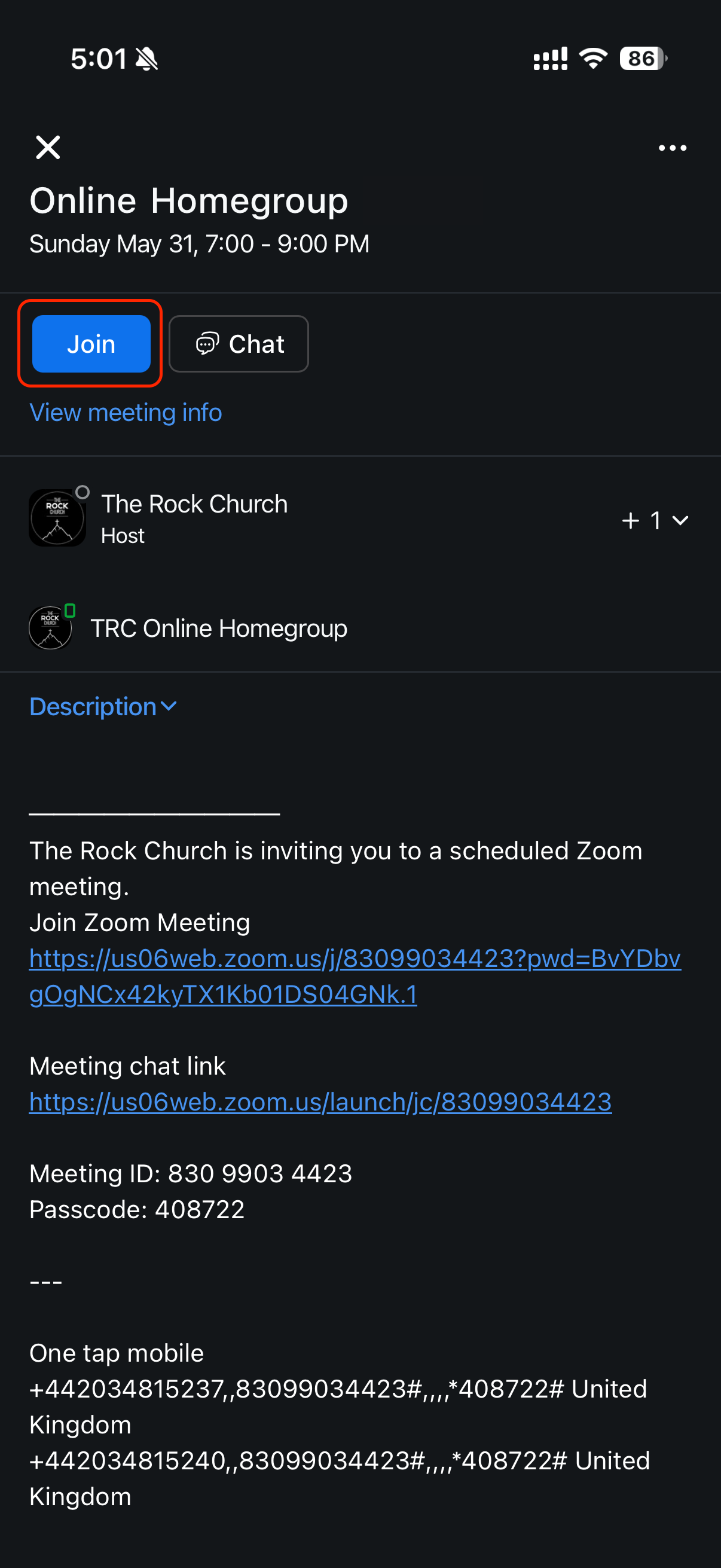
Click the blue ‘Join’ button.
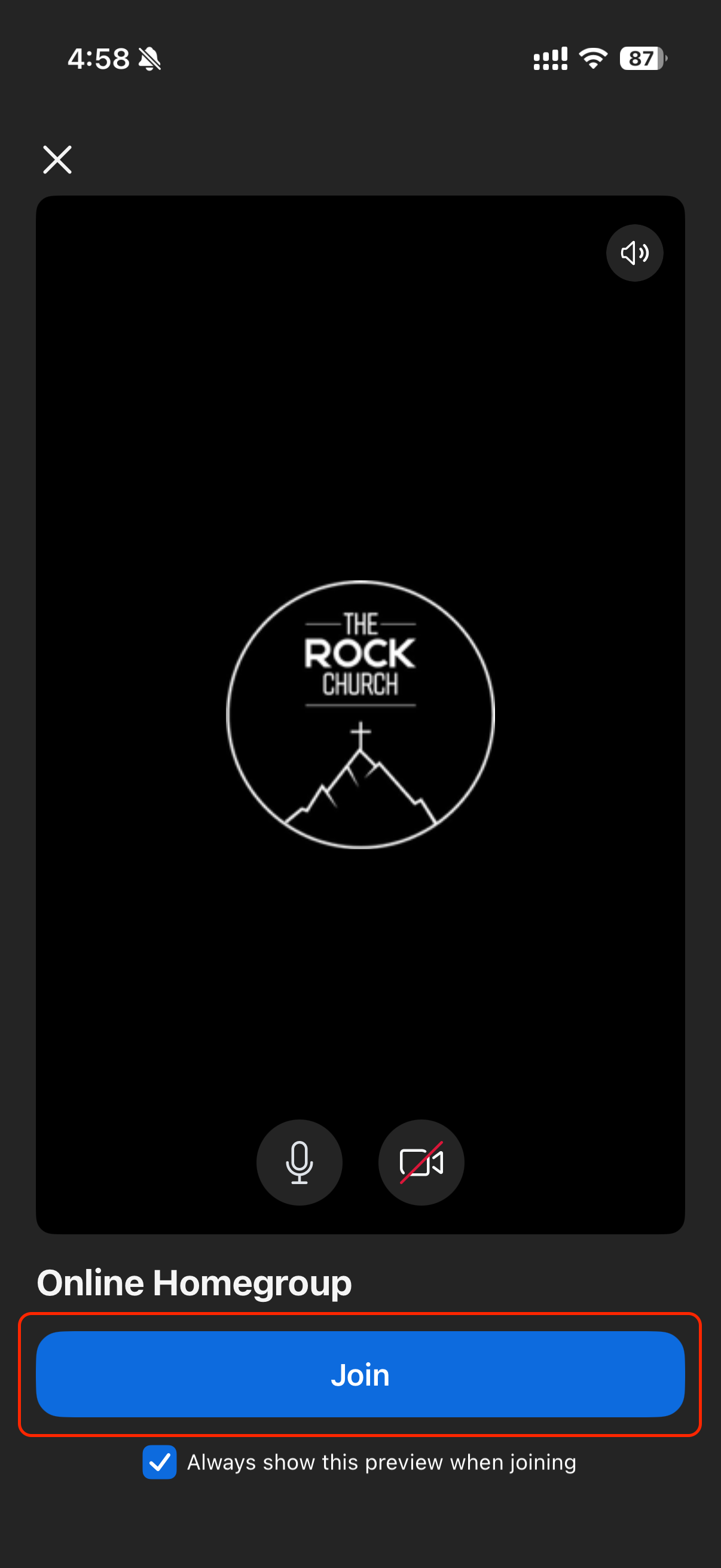
Adjust Audio and Camera settings if needed and click the blue ‘Join’ button.
You will now be in the meeting
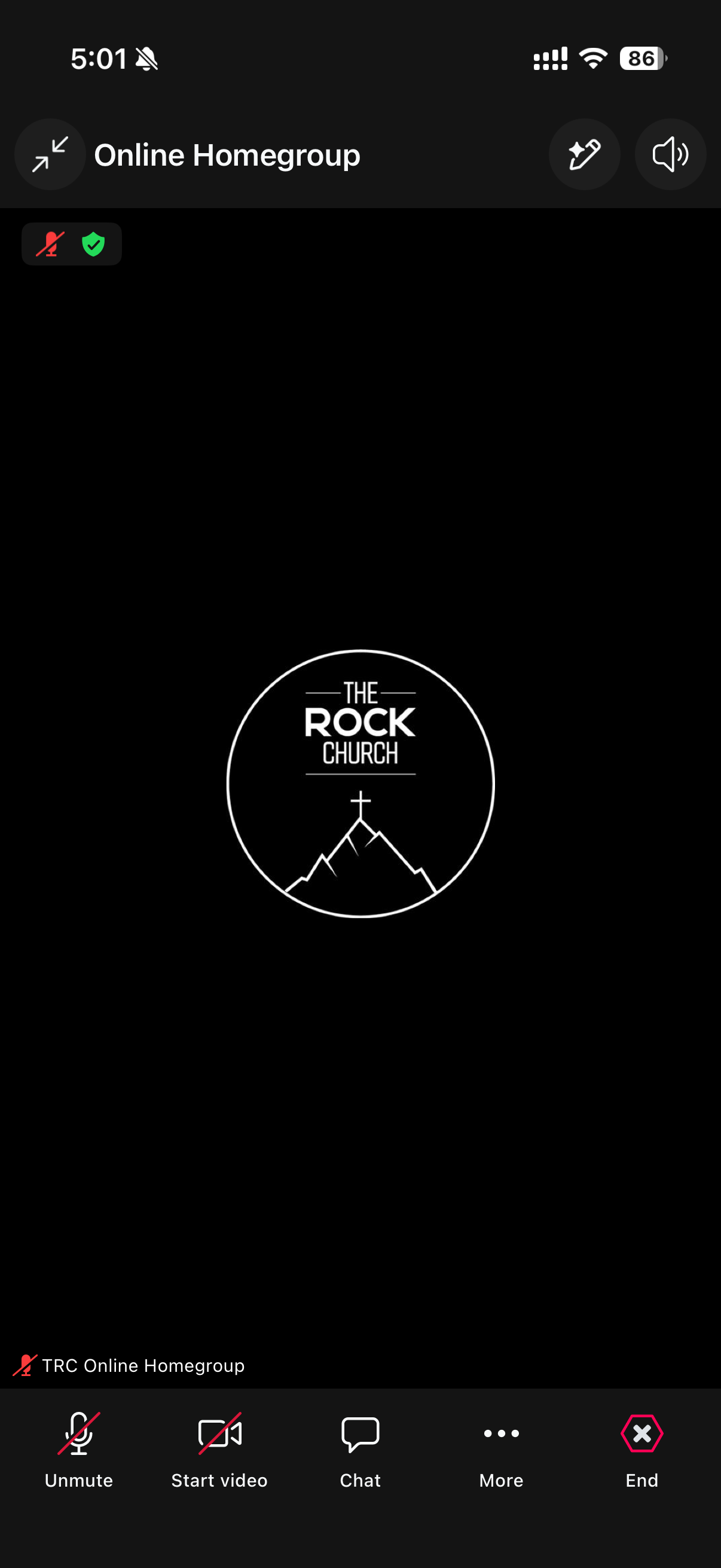
If you see the waiting room screen you have not signed in with the ‘Host Account’. Make sure to leave the meeting, sign out and login as with the ‘Host Account’ as noted above.
Meeting Controls (Host)
Once you have joined the meeting you will see a menu bar along the bottom of the screen.
Here you mute/unmute yourself and enable/disable your camera.
As the Host, please keep your camera on for the duration of the meeting, unless yoou need to turn it off for a moment to deal with something.
There is a ‘Chat’ button which will bring up the meeting chat window.
The ‘More’ button is the one to focus on as the ‘Meeting Host’:
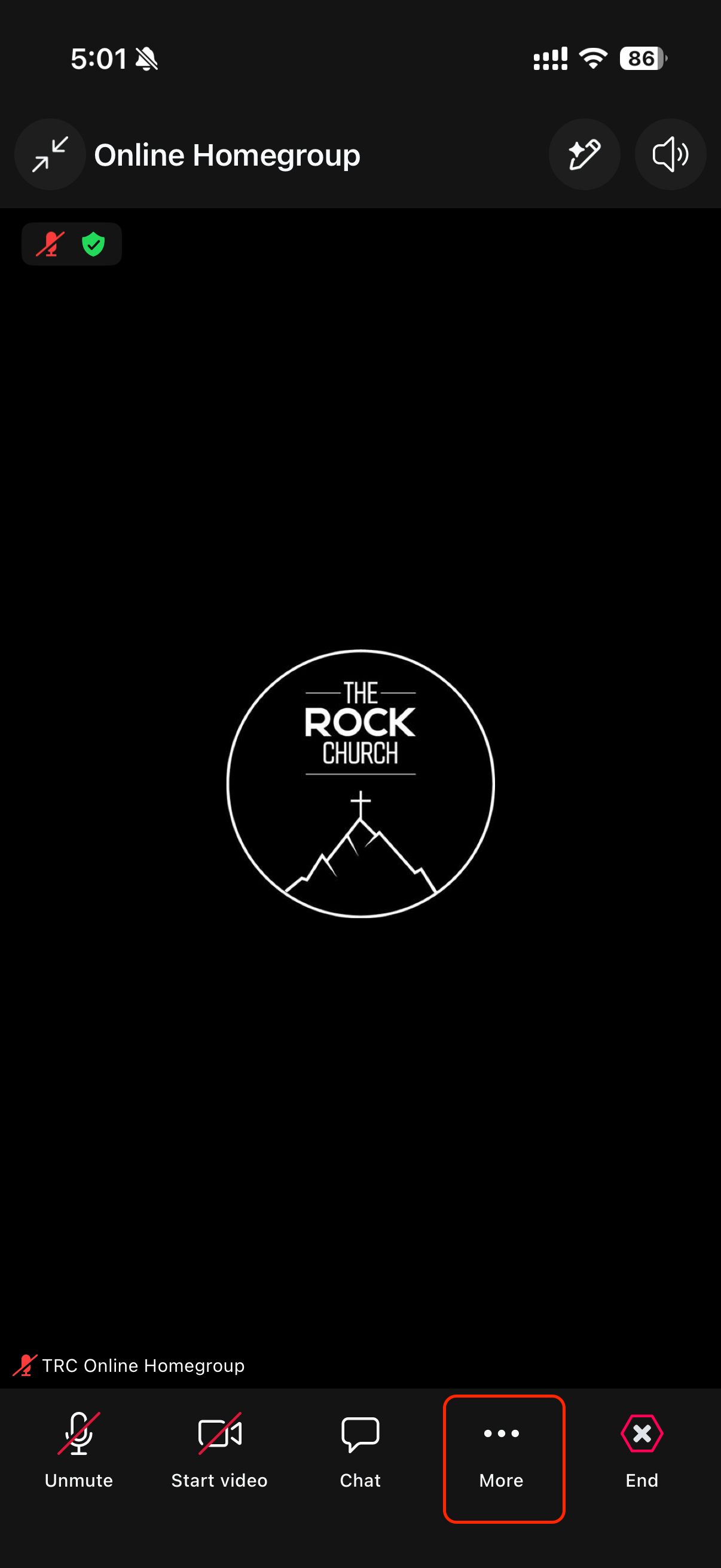
Press the ‘More’ button to bring up the ‘In Meeting Settings Menu’:
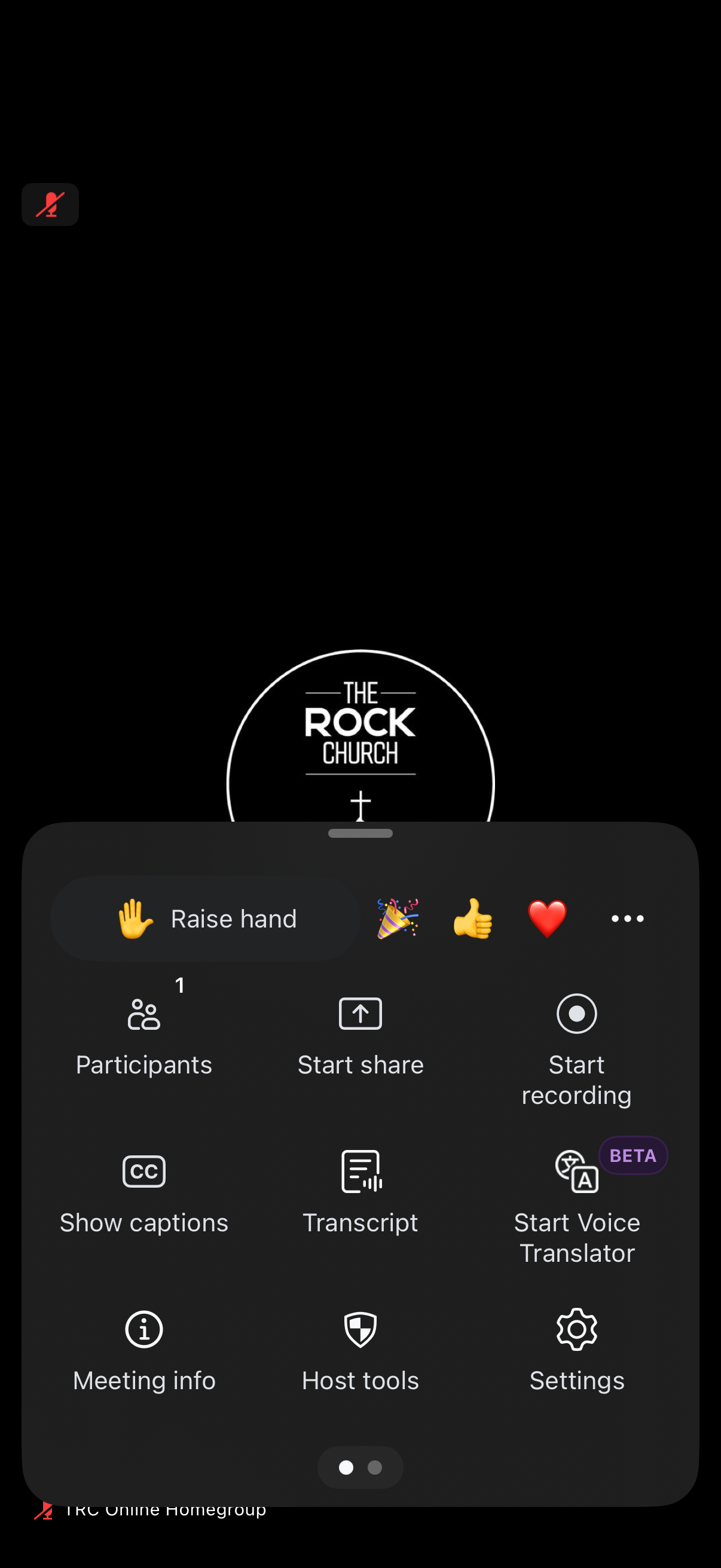
To ensure the meeting is configured properly to start the meeting, click on the ‘Host Tools’ button:
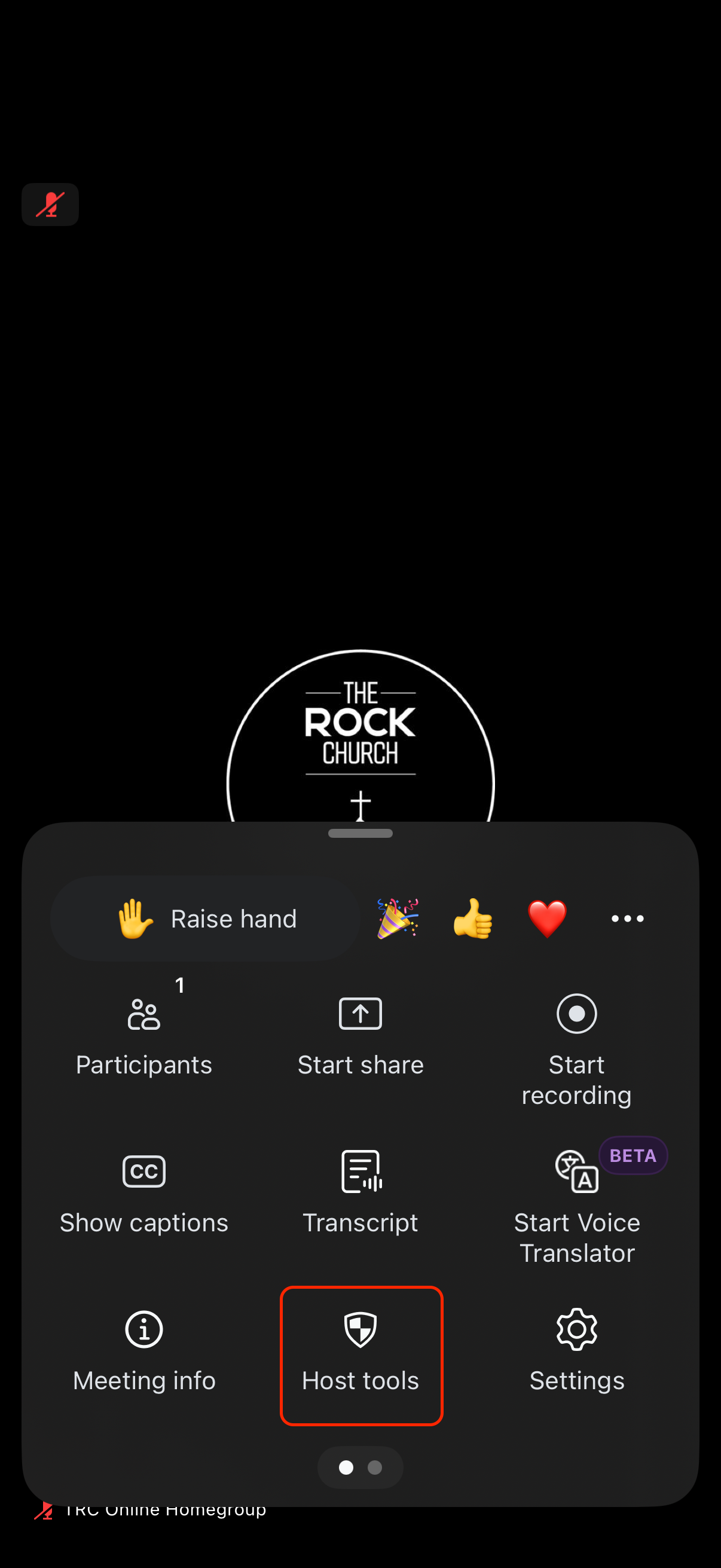
You will now see the ‘Host Tools Menu’:
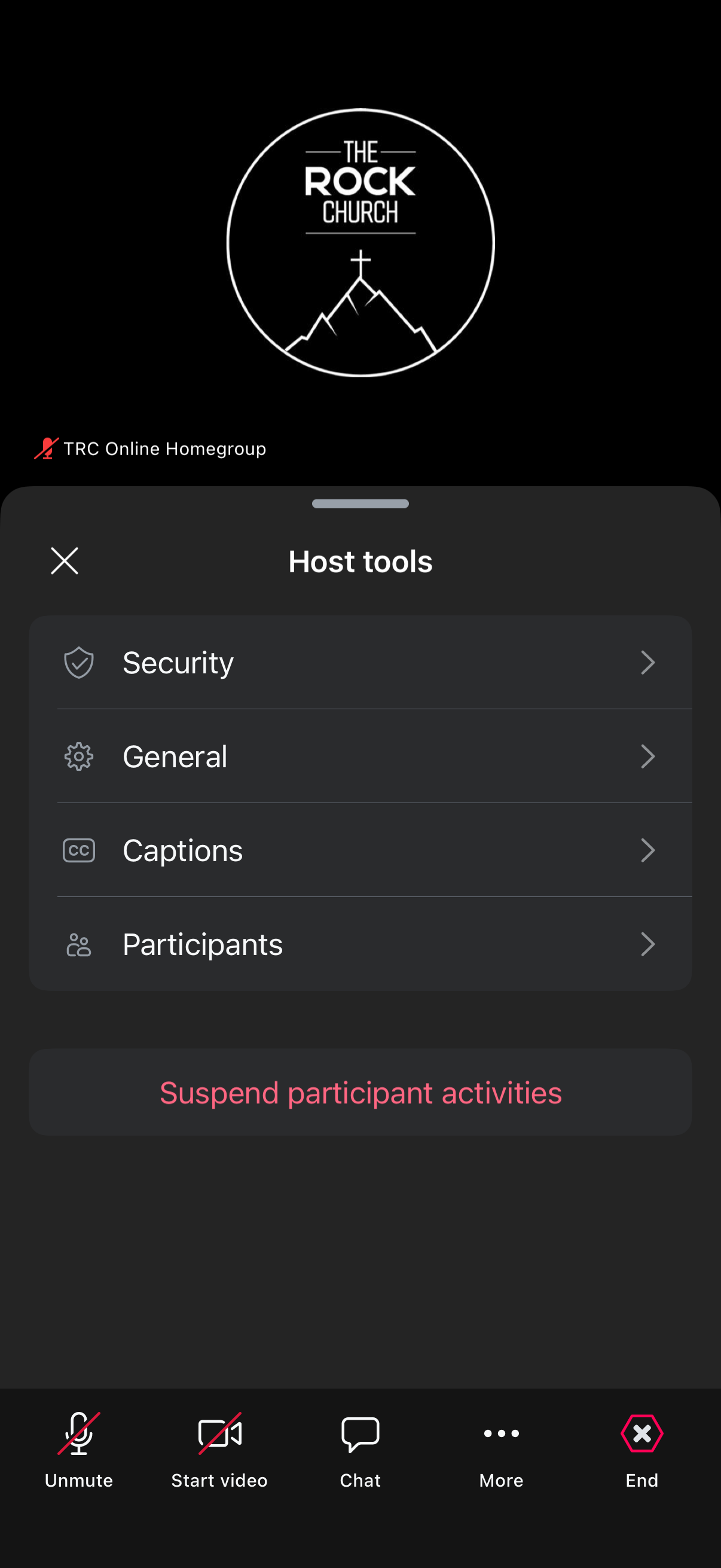
The ‘Security Menu’ is where you can enable and disable the ‘Waiting Room’. This will be enabled by default when you join:
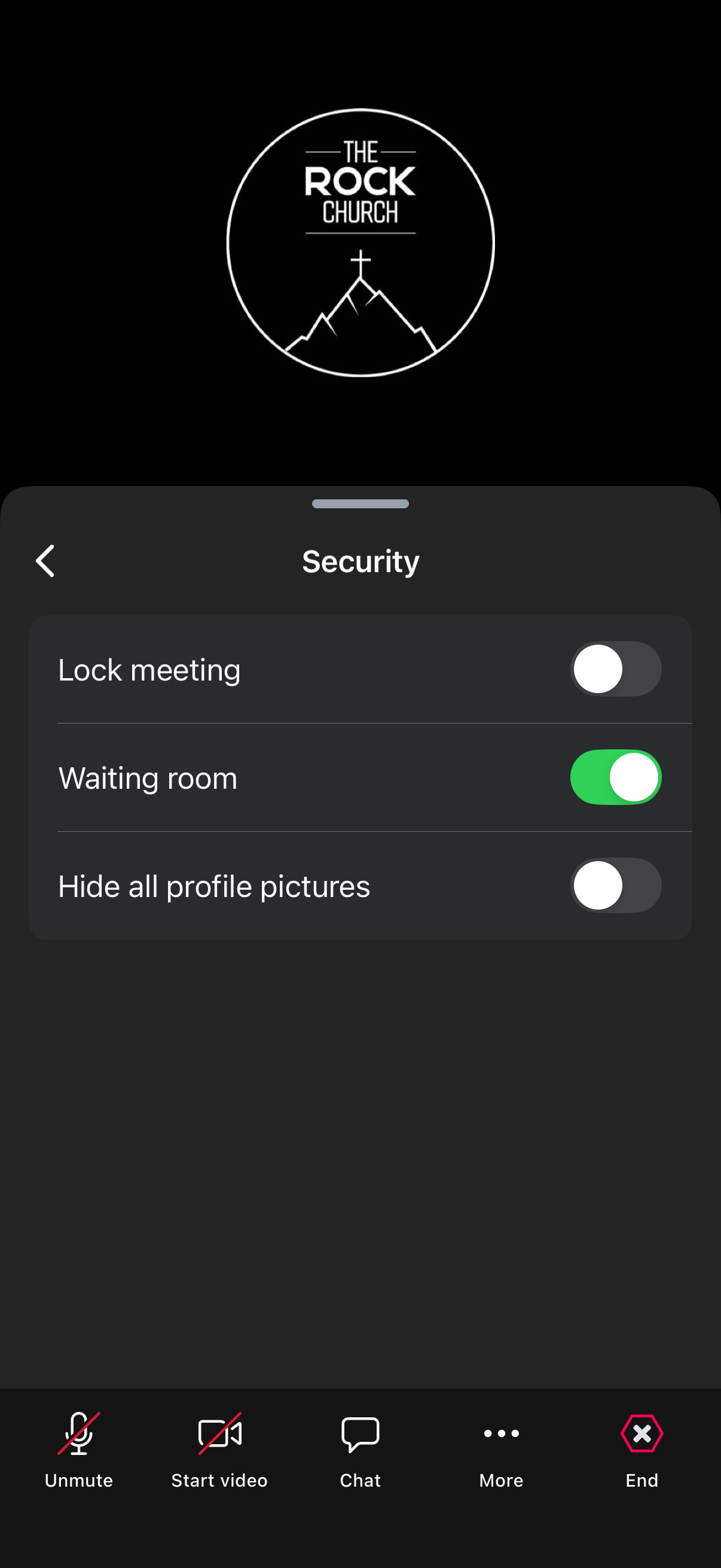
The ‘General Menu’ has the setting making sure everyone is muted when they join the meeting. This will be enabled by default. Make sure to leave this enabled so if people join late they don’t disrupt the meeting:
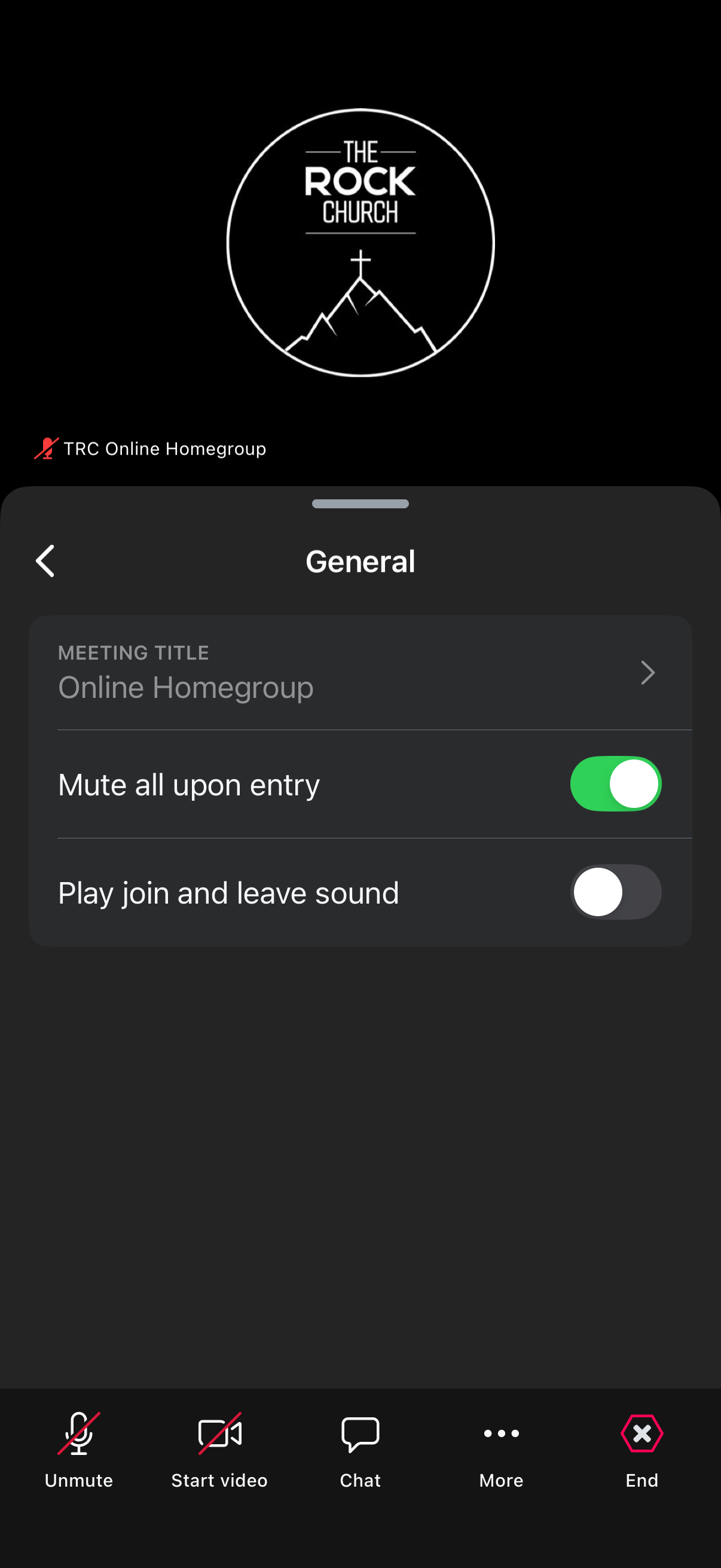
Ignore the ‘Captions Menu’, you should not need this.
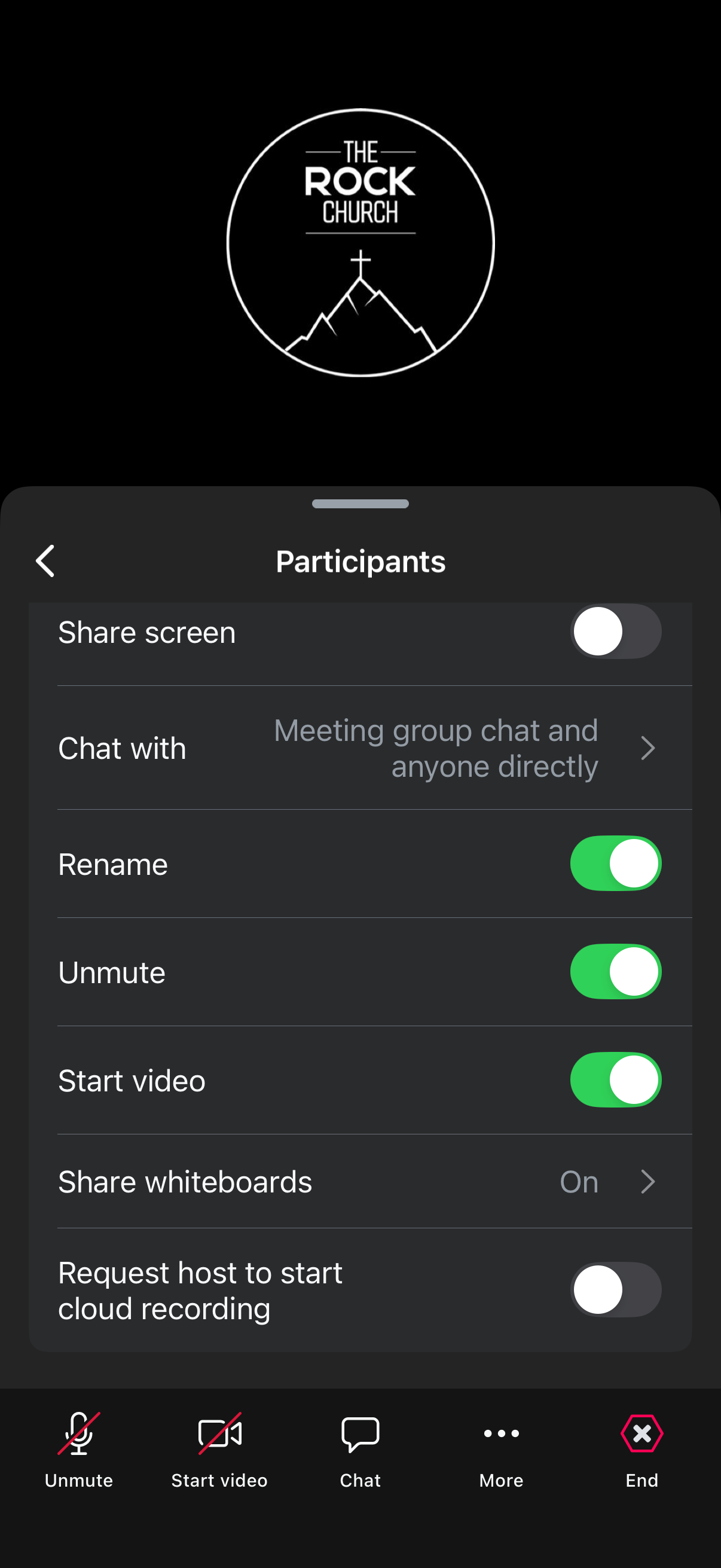
The ‘Participants Menu’ is where you can enable and disable additional particiapnt options like being able to rename, unmute, start video and share screen. The default options should be fine for this meeting. May be enable ‘Share Screen’ if you would like others to be able to do this.
You as the ‘Host’ can share screen.
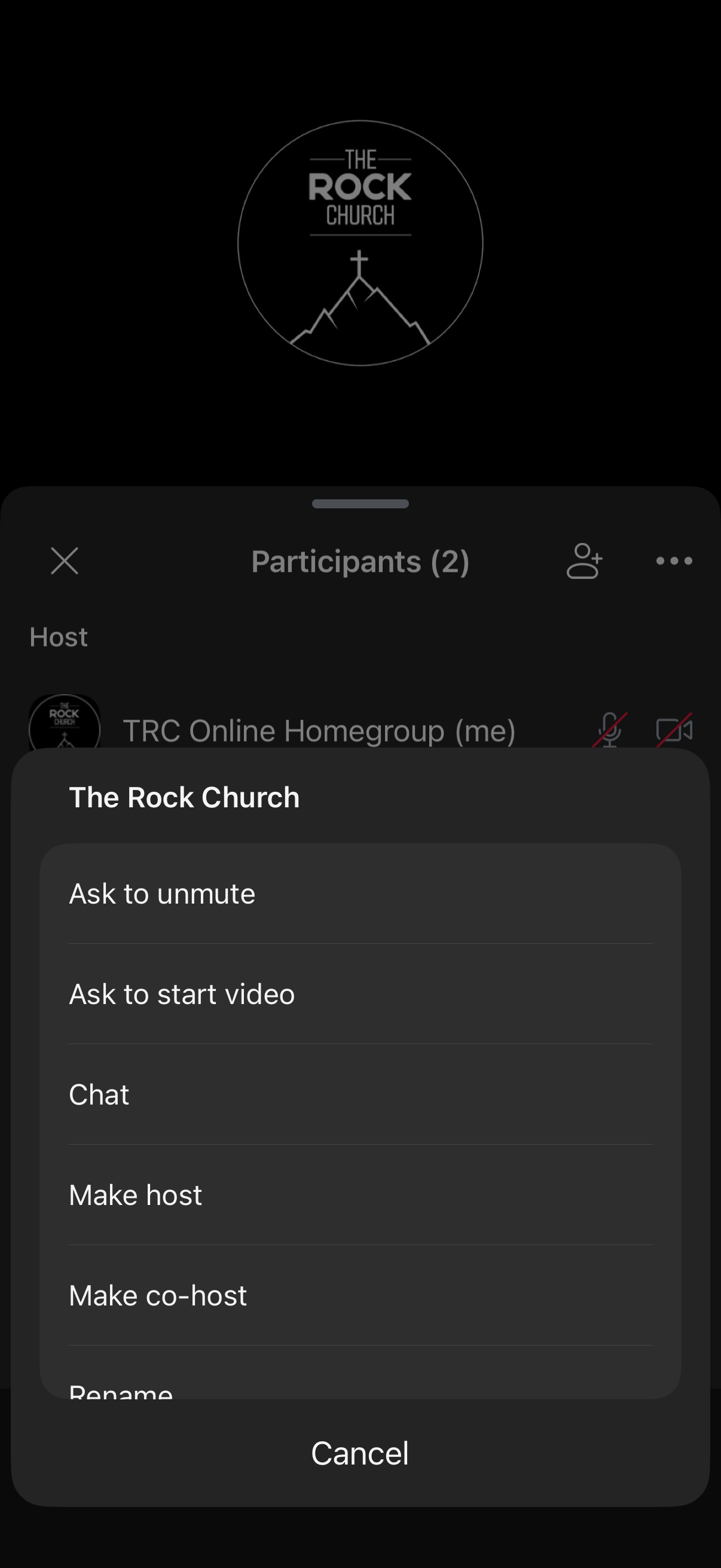
Back on the ‘More Menu’ select the ‘Participants’ button:
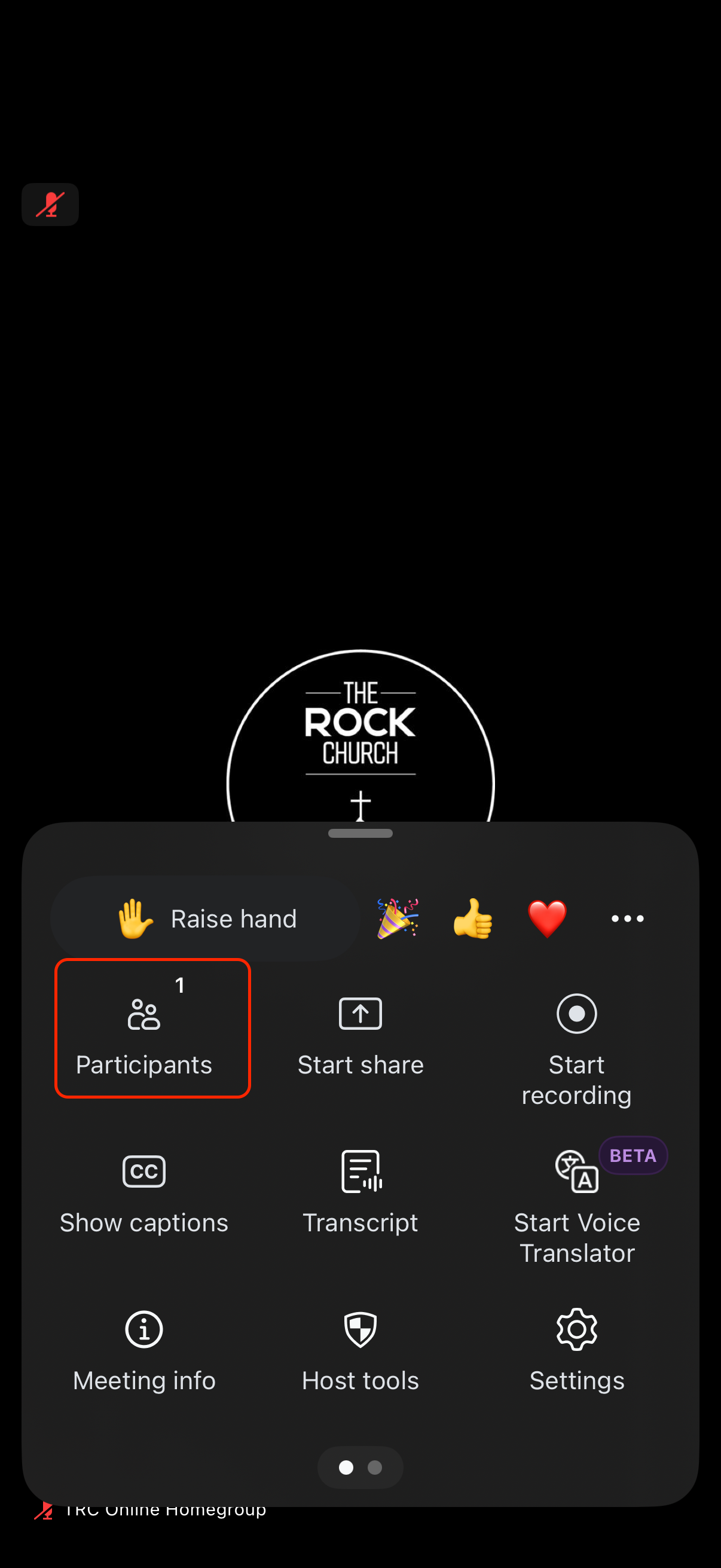
Here you will find the list of people who are in the waiting room (if enabled) or in the meeting once the waiting room is turned off:
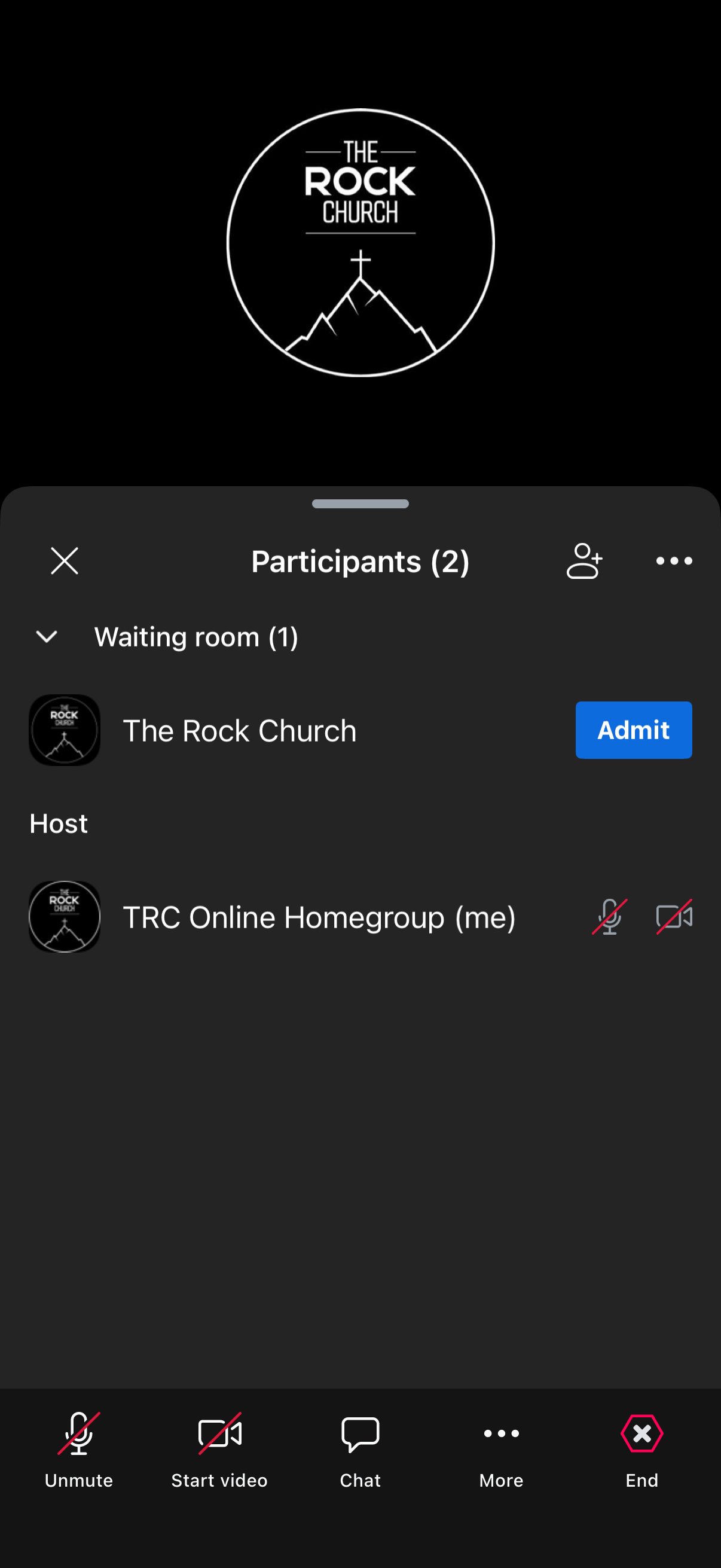
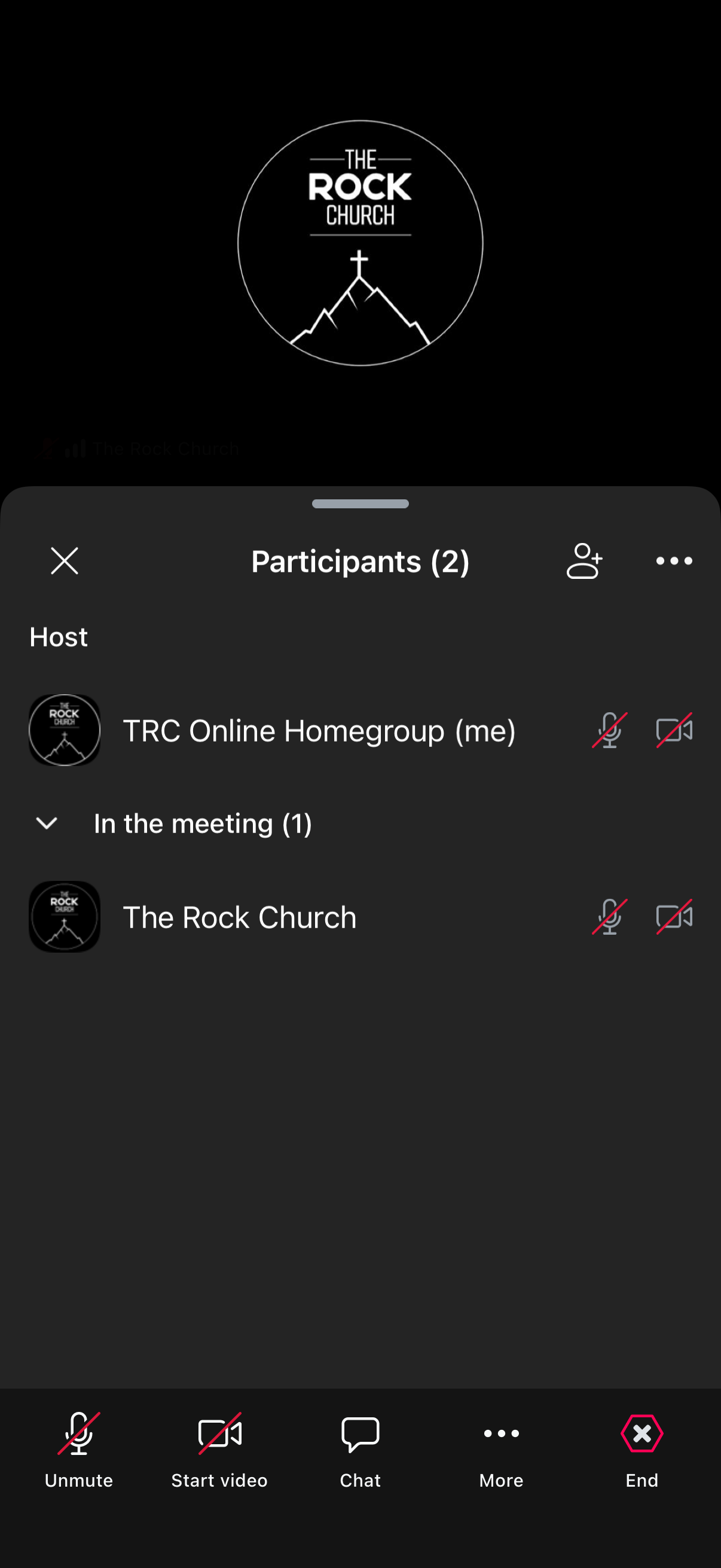
You can admit people in the waiting room into the meeting if you wish to by clicking the blue ‘Admit’ button next to their name.
When you are to disable the waiting room, head back to the ‘More’ menu and click on ‘Host Tools’:
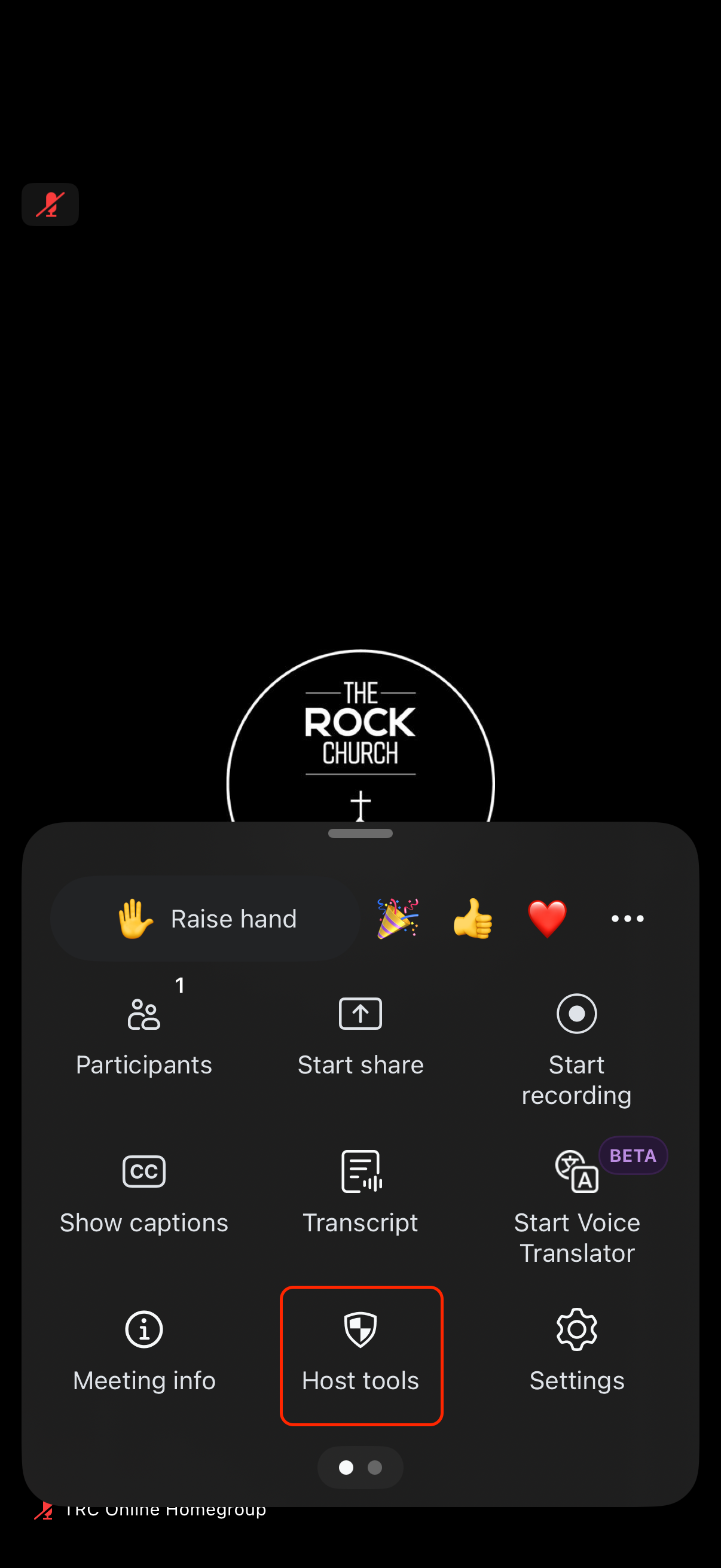
Now open the ‘Security Menu’ and disable the ‘Waiting Room’ by click in the toggle:
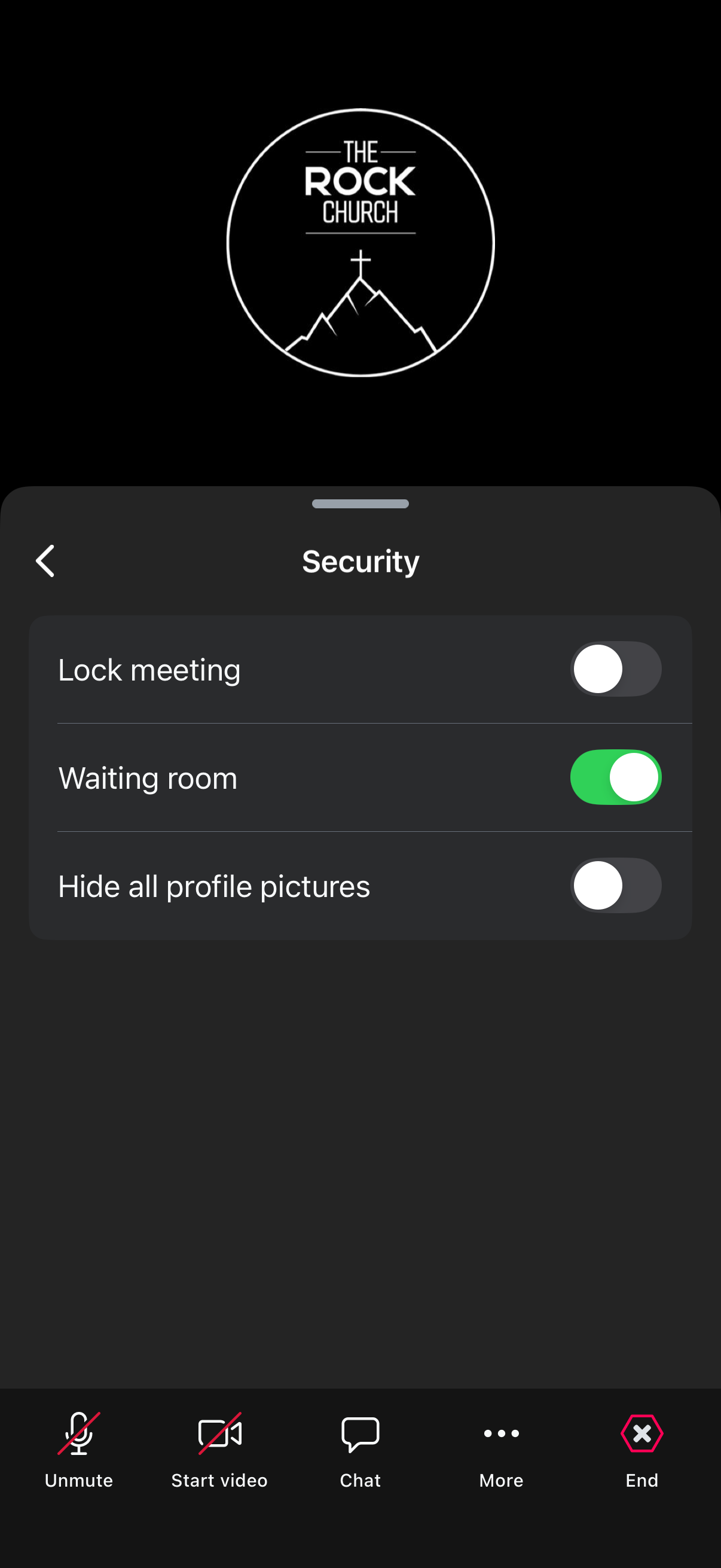
People will now join the meeting directly and not enter the wating room.
If anyone is in the waiting room, head to the ‘Participants Menu’ and ‘Admit Everyone’.
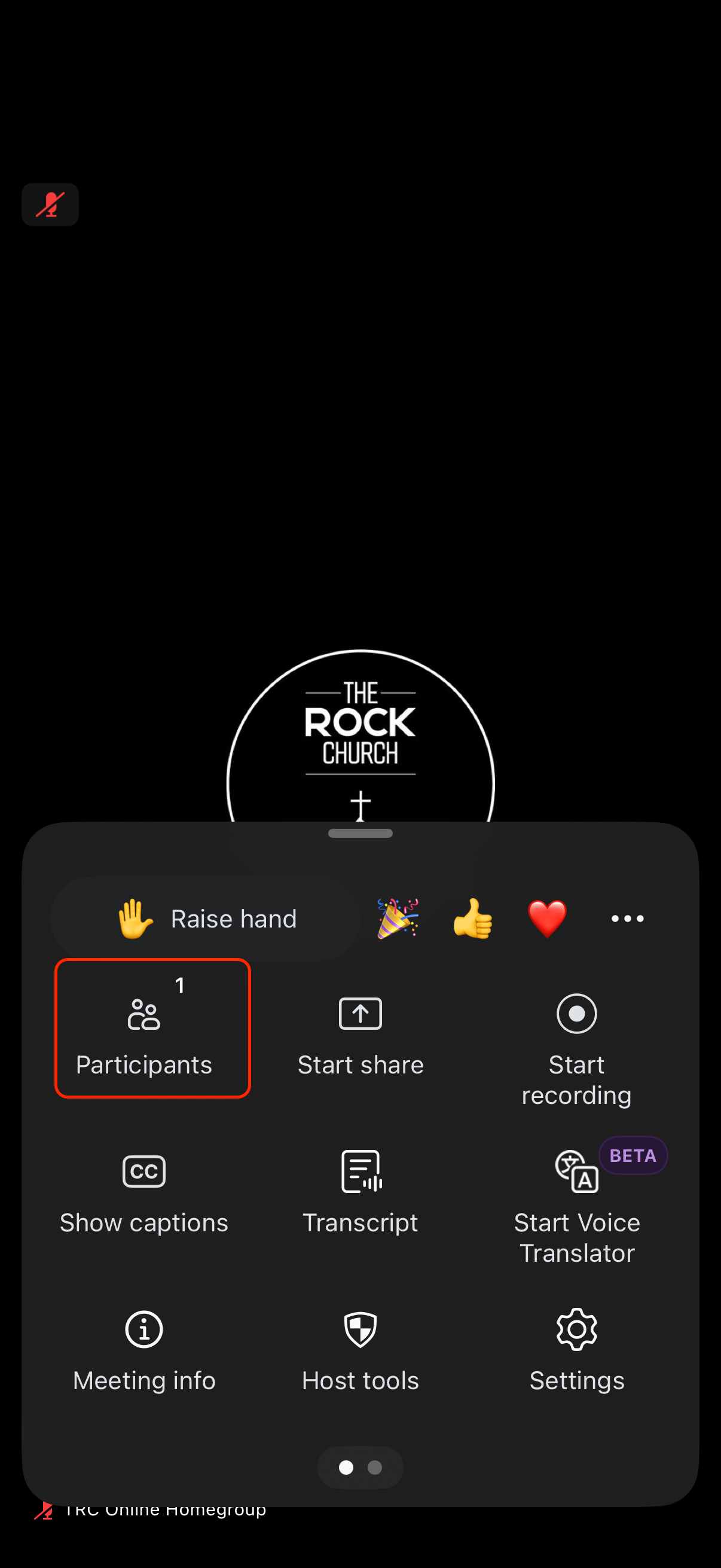
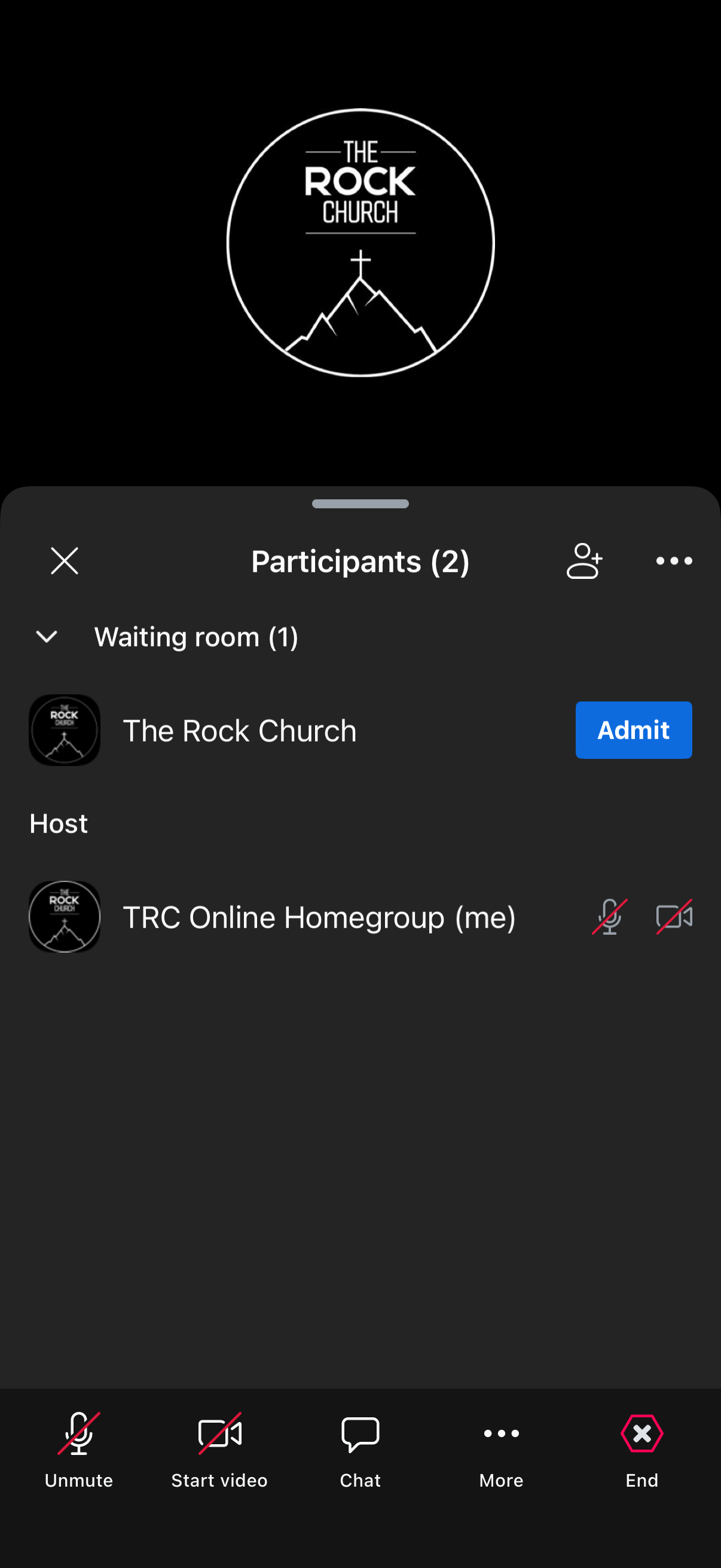
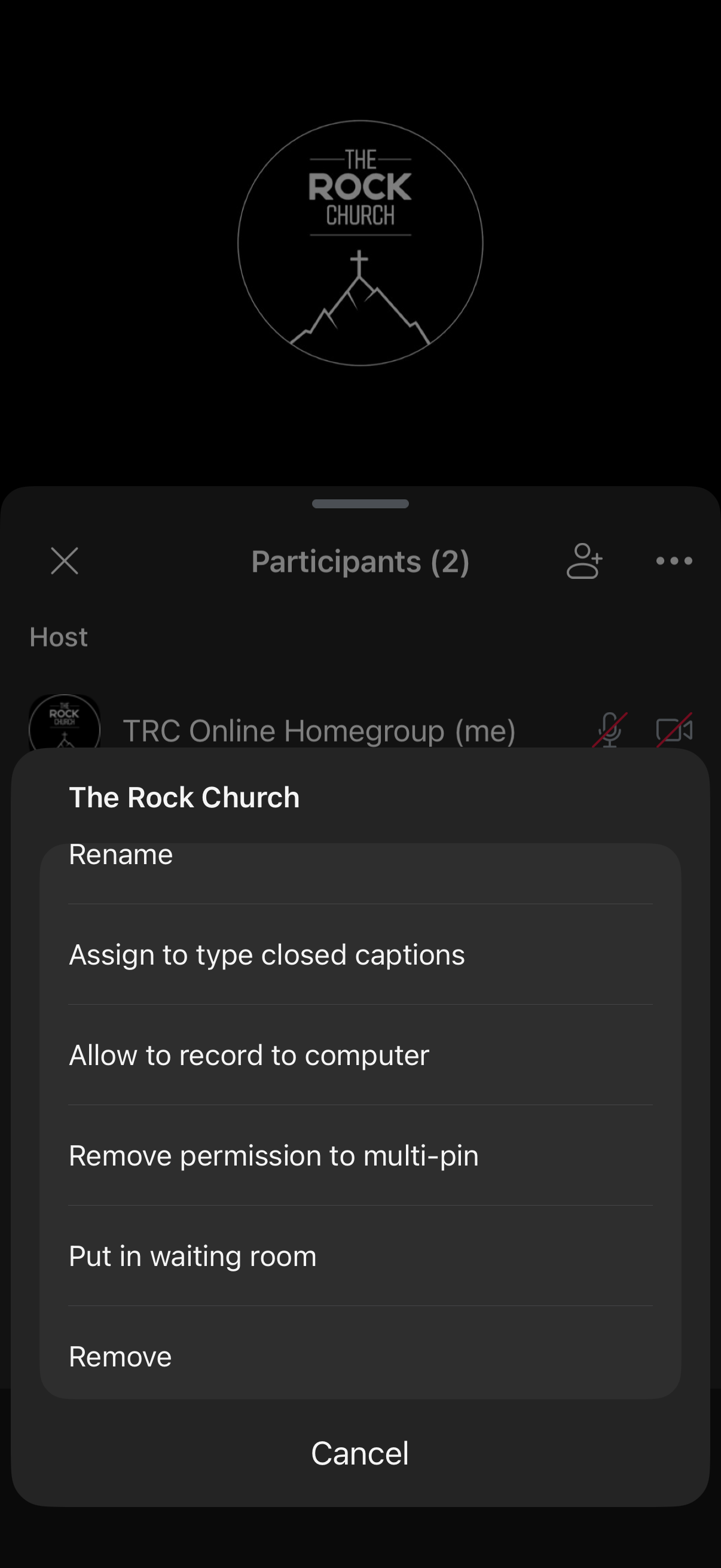
If you need to mute someone or even remove someone if they are being disruptive, from the ‘Participants Menu’ click on a users name and this will bring up a menu where you can choose what to do with that person specifically:
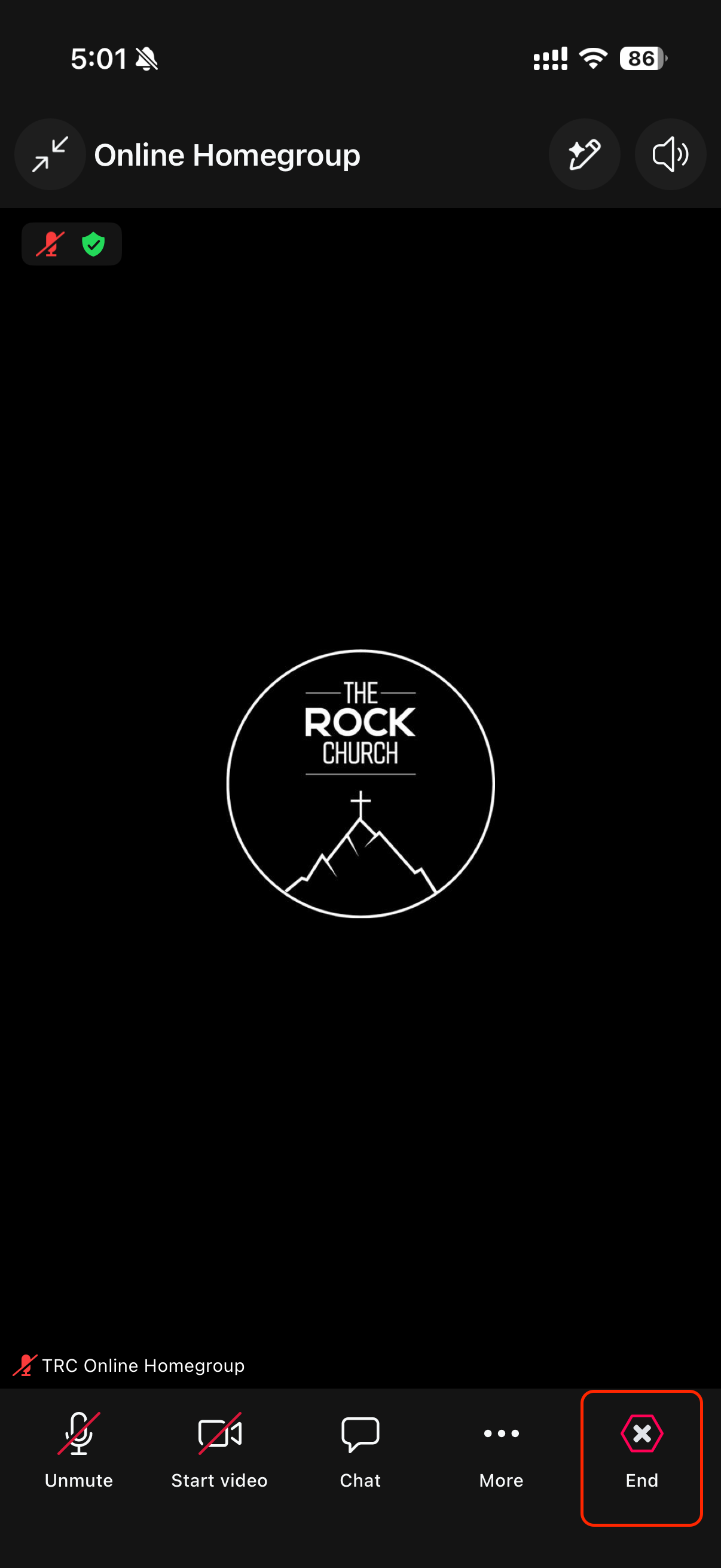
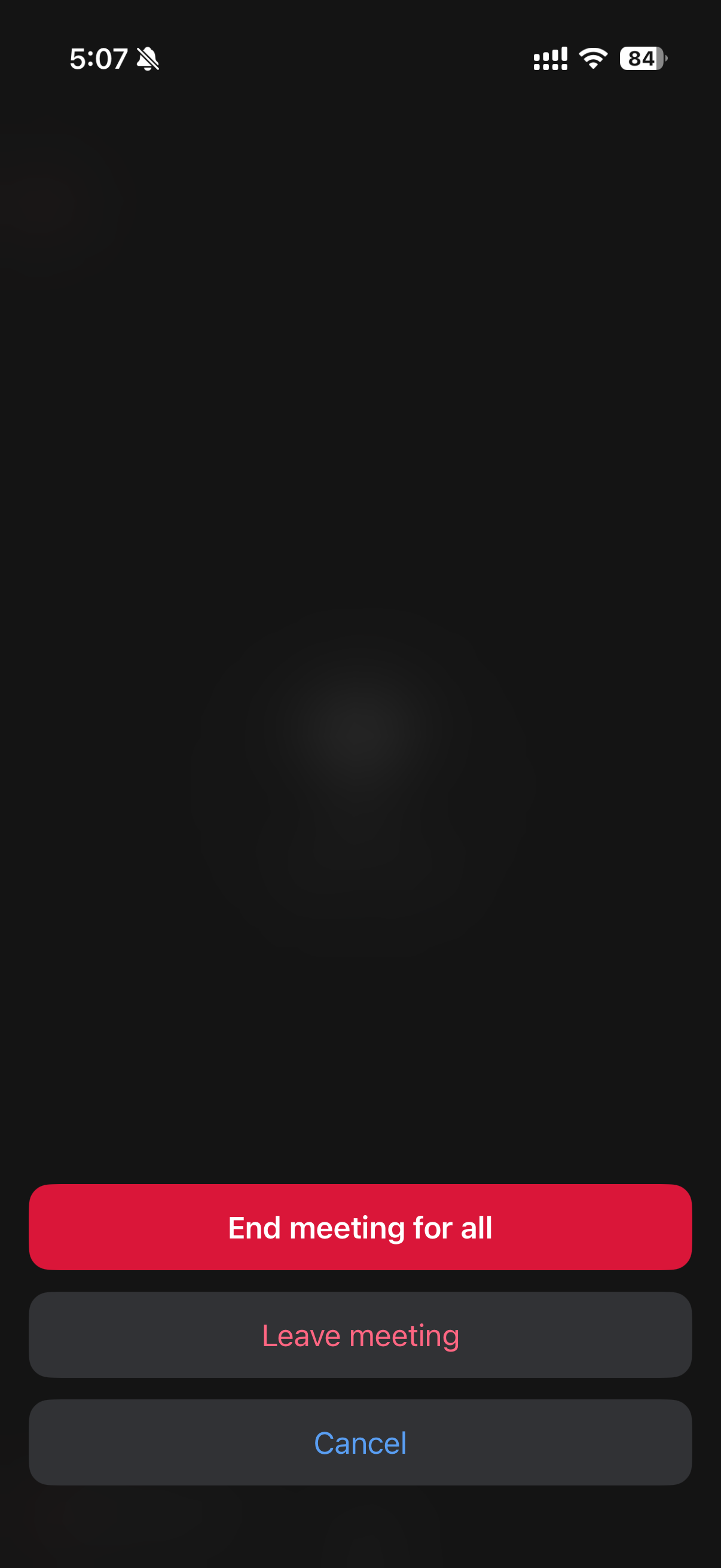
To ‘End The Meeting’, click on ‘End’ on the bottom menu bar then click ‘End meeting for all’.
This will reset all meeting options back to the default state ready for the next meeting.
Join Meeting (Attendee) - In case you need to provide help to people struggling to join
Feel free to copy and paste the text below into a message to the person struggling to join:
Go the church website: https://trcstratford.com
On the ‘Homepage’ scroll down to the ‘Coming Up’ section.
Find todays date titled ‘Online Homegroup’.
Click the ‘Join Online’ button.
A pop up will appear with further information. Click the blue “Join Online’ button and you will automatically be redirected to join the meeting in the Zoom app (or web browser if you don’t have the app).
If you see the the ‘Waiting Room’ window please wait patiently for the host to start the meeting and let you in.